
The Three Areas
Working, staging, repository.
Every change you make travels through three areas. Once you can picture them, almost every Git command makes sense.

- Three areas
- Every change travels through them
- Picture them, and Git makes sense
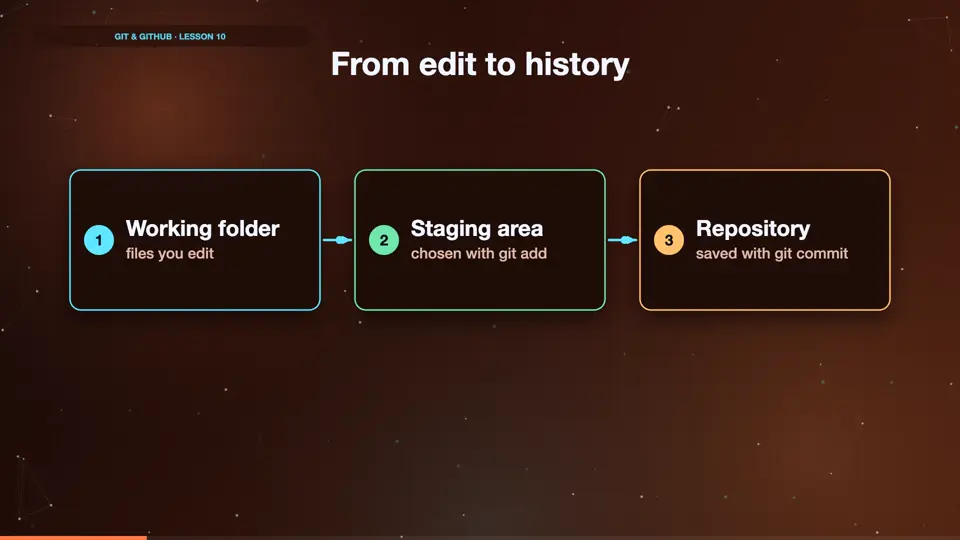
From edit to history
First, the working folder. That's your files, as you edit them. Second, the staging area, the box of changes you've chosen with git add. Third, the repository, the history of commits, stored safely in dot git. Git add moves a change from the working folder to staging. Git commit moves it from staging into the repository.
- Working folderfiles you edit
- Staging areachosen with git add
- Repositorysaved with git commit
Watching a change travel
Let's watch one change travel. We create a new file, called about dot HTML. Status shows it's in the working folder only, untracked. We add it. Now it's in staging. We commit. Now it's in the repository, and status says the working tree is clean.
echo "<h1>About me</h1>" > about.html
git status --short
?? about.html
git add about.html
git status --short
A  about.html
git commit -m "Add about page"
[main 6e7fc26] Add about page
 1 file changed, 1 insertion(+)
 create mode 100644 about.html
git status
On branch main
nothing to commit, working tree clean
The short status
Did you notice we used status dash dash short? It prints one line per file. Two question marks mean untracked. A green A means added to staging. An M means modified. It's handy once you know the codes.
| key | value |
|---|---|
| ?? | untracked |
| A | added, staged |
| M | modified |
| --short | one line per file |
Summary
Working folder, staging area, repository. Add moves changes to staging, commit saves them to history. Next, why the staging step is so useful.
Key takeaways- Working folder: your edits
- Staging: chosen changes
- Repository: saved history