
Diffing Staged Changes
Git diff --staged.
Here's something that confuses lots of beginners. You change a file, you add it, then you run git diff, and it shows nothing. Where did your change go?
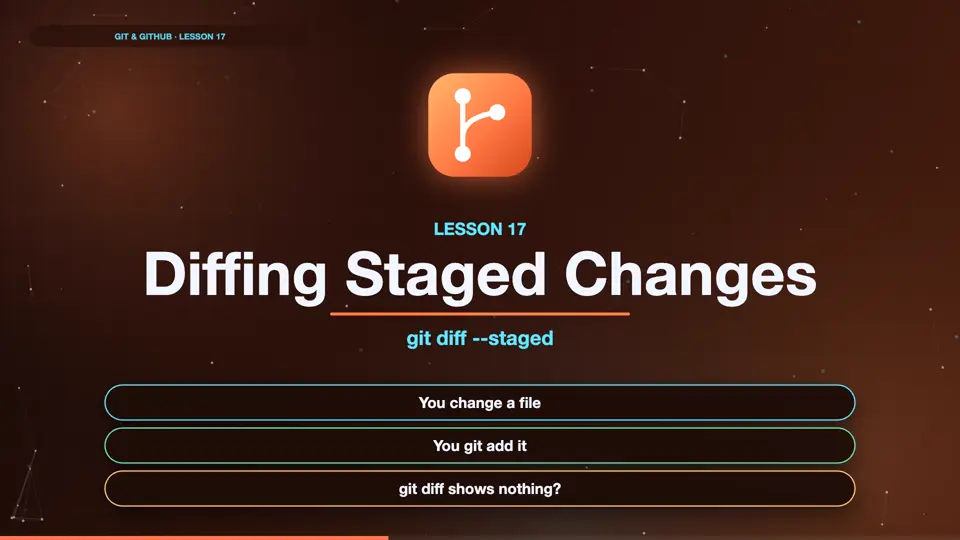
- You change a file
- You git add it
- git diff shows nothing?
Nothing to show?
We add a new line to the about page, and stage it with git add. Now git diff prints nothing. That's because plain diff compares your working folder with the staging area. And they're the same now. To see what's staged, add dash dash staged. There it is, the line that will go into the next commit.
echo "<p>I love making websites.</p>" >> about.html
git add about.html
git diff
git diff --staged
diff --git a/about.html b/about.html
index 058b39b..9845520 100644
--- a/about.html
+++ b/about.html
@@ -1 +1,2 @@
 <h1>About me</h1>
+<p>I love making websites.</p>
Which diff?
So remember. Plain git diff shows changes you haven't staged yet. Git diff dash dash staged shows changes you've staged, and are about to commit. Running the staged diff, right before you commit, is a great habit.
git diff
- Working folder vs staging
- Not yet added
git diff --staged
- Staging vs last commit
- About to be committed
Summary
Plain diff shows unstaged changes, diff dash dash staged shows what you're about to commit. Next, looking at what an old commit changed.
Key takeaways- git diff: not staged yet
- git diff --staged: staged
- Check before every commit