
Git & GitHub · Lesson 70 of 144
Opening a Pull Request
Branch, push, open.
Opening a pull request always starts on your computer. You make a branch, commit your work, and push the branch. Then you finish on GitHub.
- Start on your computer
- Branch, commit, push
- Finish on GitHub
Prepare the branch
We create a branch called add blog. We commit a blog page, and a link to it. Then we push the branch to GitHub, with dash u.
git
git switch -c add-blog
Switched to a new branch 'add-blog'
echo '<h1>Blog</h1>' > blog.html
git add blog.html
git commit -m "Add blog page"
[add-blog 55c6b9b] Add blog page
 1 file changed, 1 insertion(+)
 create mode 100644 blog.html
echo '<a href="blog.html">Blog</a>' >> index.html
git commit -am "Link to blog"
[add-blog a05e8bd] Link to blog
 1 file changed, 1 insertion(+)
git push -u origin add-blog
To https://github.com/sam/my-site.git
 * [new branch]      add-blog -> add-blog
branch 'add-blog' set up to track 'origin/add-blog'.
On GitHub
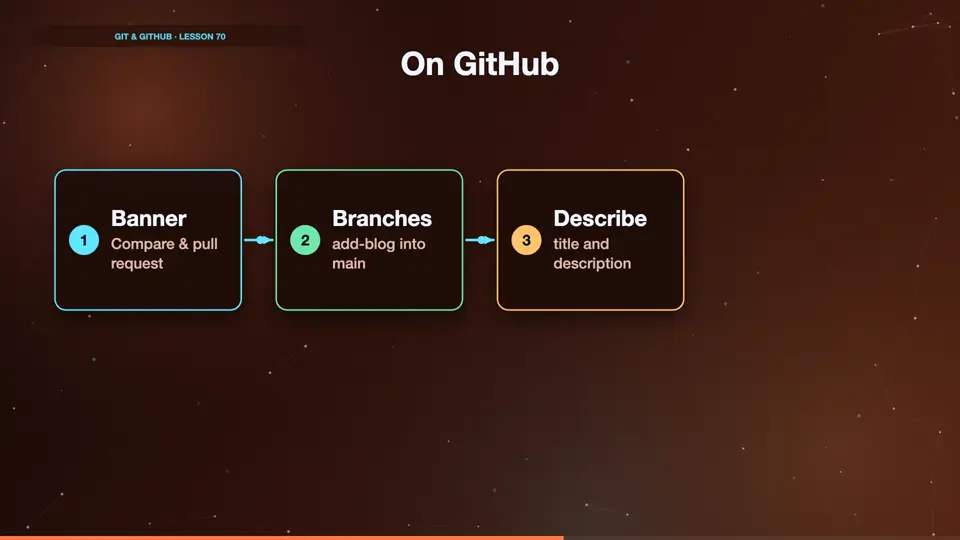
Now on GitHub. A yellow banner appears, saying add blog had recent pushes, with a button, compare and pull request. Click it. Check that it merges add blog into main. Write a clear title, and a description of what you did, and why. Then click create pull request.
- BannerCompare & pull request
- Branchesadd-blog into main
- Describetitle and description
- Createpull request opened
Summary
Push your branch, then click compare and pull request on GitHub, describe your change, and create it. Next, what happens during review.
Key takeaways- Push the branch
- Compare & pull request
- Clear title and description
Next up: Code Review — comments, changes, approval