
A Repository on GitHub
Creating it on the website.
First, you need a free account on github dot com. Sign up with the same email you gave Git, so your commits are linked to your profile. Then you create an empty repository, on the website.
- Free account at github.com
- Use the same email as git config
- Create an empty repository
Creating a repository
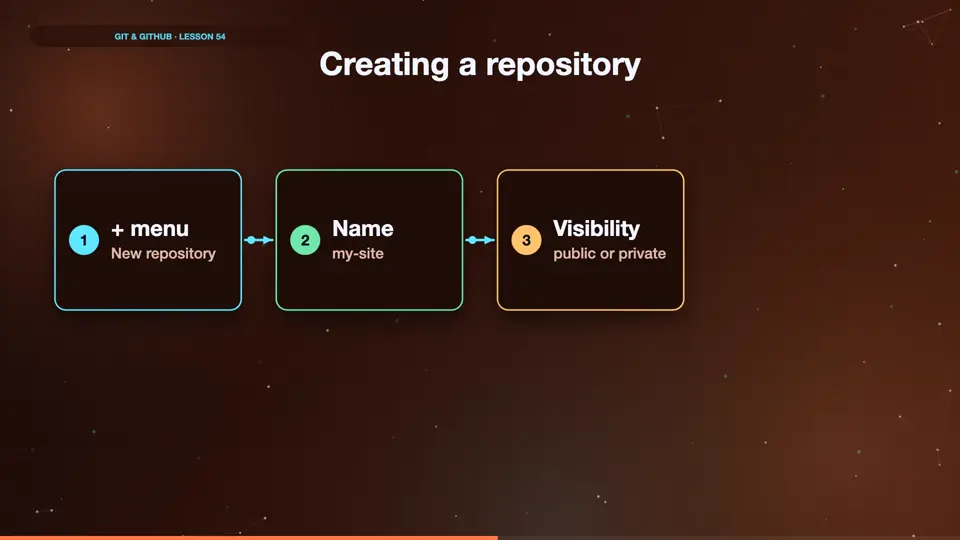
On GitHub, click the plus button in the top corner, and choose new repository. Give it a name, like my site. Choose public, so anyone can see it, or private, just for you and people you invite. Leave the boxes for a readme and other files unticked, because our project already exists. Then click create repository.
- + menuNew repository
- Namemy-site
- Visibilitypublic or private
- Createleave it empty
The address
GitHub then shows a page with your repository's address. It looks like this. HTTPS, github dot com, your username, then the repository name, ending in dot git. This address is how your computer finds the remote. Copy it, because we need it next.
| key | value |
|---|---|
| Address | https://github.com/sam/my-site.git |
| sam | your username |
| my-site | the repository |
| Copy it | we need it next |
Summary
Create an account, then a new, empty repository, and copy its address. Next, connecting your local repository to it.
Key takeaways- github.com account
- New repository, left empty
- Copy the address