CI/CD with GitHub Actions Tutorial 138 lessons · 2:41:13+ of video
CI/CD with GitHub Actions Home What Is CI/CD?
What Is CI/CD? Life Without CI Integration, Delivery, Deployment Pipelines and Our Project
What Is a Pipeline? Our Project Running Tests by Hand Git and GitHub
Git in Two Minutes Branches and Pull Requests Where GitHub Actions Fits Key Words and YAML
The Key Words YAML Basics YAML Lists and Maps YAML Gotchas
YAML Gotchas Multi-line Strings Foundations Quiz Your First Workflow
Your First Workflow The Workflows Folder Reading a Workflow Events, Jobs and Steps
Events with on Jobs and runs-on Steps with run Actions
Actions with uses checkout setup-python Tests in CI
Running Tests in CI Reading the Logs A Failing Build Fixing and Triggers
Fixing the Build Checking Workflows Push and Pull Request Triggers Filters, Manual and Scheduled Runs
Branch and Path Filters Manual Runs Scheduled Runs First Workflows Practice
Practice: A Lint Workflow Practice: Two Triggers First Workflows Quiz Variables and Contexts
Environment Variables Contexts and Expressions Default Variables Secrets, Tokens and Outputs
Secrets GITHUB_TOKEN and Permissions Step Outputs Jobs and needs
Multiple Jobs needs Job Outputs Conditions and Matrices
Conditions with if Status Functions Matrix Builds Matrix Options and Caching
Matrix include and exclude fail-fast Caching Dependencies Artifacts, Services and Timeouts
Artifacts Service Containers Timeouts and continue-on-error Concurrency and Practice
Concurrency Working Directory and Shell Practice: A Matrix Pipeline Building Blocks Practice
Practice: Build Then Test Practice: Debugging a Pipeline Building Blocks Quiz Quality Gates
Linting Formatting Checks Test Coverage Fast Feedback and Node.js
Fast Feedback A Node.js Pipeline npm ci and Lockfiles Security Checks
Dependency Scanning Dependabot Secret Scanning Protecting main
Branch Protection Required Checks Status Badges Reviews, Flaky Tests, and Gates
Code Review with CI Flaky Tests Practice: A Quality Gate Fixing Builds and the Test Pyramid
Practice: Fix the Red Build The Test Pyramid Quality Quiz Continuous Delivery
Continuous Delivery Building a Docker Image Image Tags Versions and Releases
Versions and Git Tags Pushing to a Registry Releases on Tags Environments and Approvals
Environments Approvals Environment Secrets Deployment Strategies
Deployment Strategies Rolling Deploys Blue-Green and Canary Deploying
Deploying over SSH GitHub Pages Cloud Login with OIDC Smoke Tests, Rollbacks, and Flags
Smoke Tests Rollbacks Feature Flags Migrations and Delivery Practice
Database Migrations Practice: Deploy on Tag Practice: Staging then Production Delivery Quiz and Reusable Workflows
Delivery Quiz Reusable Workflows Inputs and Secrets for Reusable Workflows Writing Your Own Actions
Composite Actions Writing a Script Action Marketplace Actions Workflow Security
Pinning Actions Script Injection pull_request_target Dangers Privilege, Runners, and Monorepos
Least Privilege Self-Hosted Runners Monorepos Debugging, Speed, and Cost
Debugging Workflows Speeding Up Pipelines Cost and Minutes Templates and Shared Workflows
Workflow Templates Practice: A Shared Workflow Advanced Quiz Projects: CI and Delivery
Project: Python CI Project: Node CI Project: Docker Delivery Projects: Releases and the Full Pipeline
Project: Release Automation Project: Nightly Checks Project: The Full Pipeline Beyond Actions and Best Practices
Other CI Tools CI/CD Best Practices Common Mistakes Interview Questions
Interview Question 1 Interview Question 2 Interview Question 3 Cheat Sheets and Final Quiz
Cheat Sheet: Workflow Syntax Cheat Sheet: Patterns Final Quiz Metrics and Next Steps
DevOps Metrics What to Learn Next Practice Plan Your First Pipeline and Course Complete
Your First Real Pipeline Course Review Course Complete CI/CD with GitHub Actions · Lesson 26 of 138
Reading the Logs What happened, step by step.
⏱ 2 min read ▶ Video at 29:19 🎓 Free
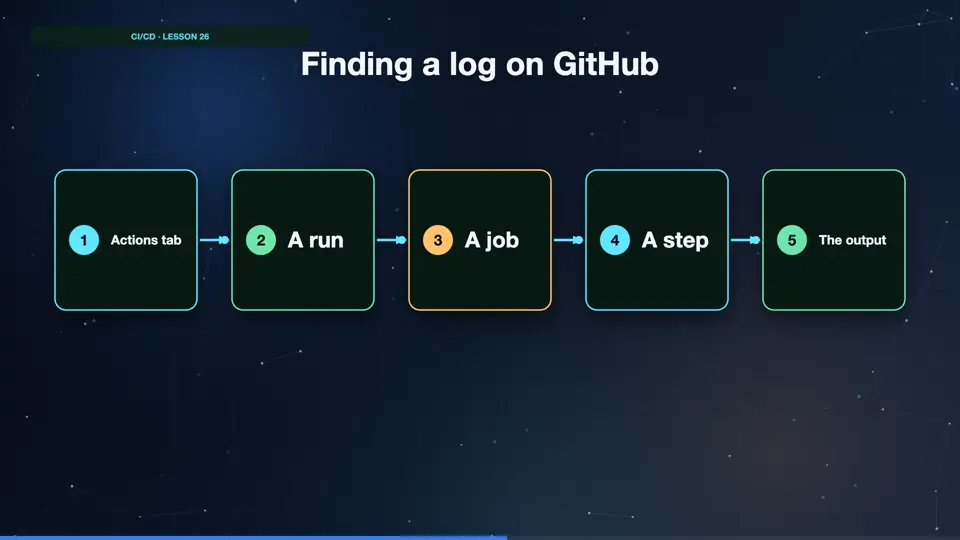
▶ starts at 29:19 When a run finishes, the log is where you find out what happened. On GitHub, you open the Actions tab, click the run, then the job, and every step is listed with its output. Learning to read logs quickly is a real superpower.
From the video: Reading the Logs The Actions tab Run, job, steps Read logs fast On GitHub, click Actions at the top of the repository. You see every run, newest first, with a tick or a cross. Click a run to see its jobs. Click a job, and you see its steps. Click a step to expand its output. When something fails, GitHub opens the failing step for you.
Actions tab
A run
A job
A step
The output
From the video: Finding a log on GitHub Start at the first red cross, not the last one, because later failures are often caused by the first. Read the last few lines of that step, where the error usually is. Look at the exit code. And check which commit and branch the run was for, at the top of the page.
key value First red cross the real cause Last lines usually the error Exit code why it failed Commit, branch which change
Prefer to watch? The full CI/CD with GitHub Actions course is free All lessons in one video with animations, real code and chapters.
Watch free Open the run, then the job, then the first failing step, and read its last lines. Next, let's break the build on purpose.
Key takeaways Actions → run → job → step First failure first Read the last lines